
Using the Android app
The HILIA app hides files inside ordinary photos, keeps those photos in a private Vault on your phone, and can lock the whole app behind a passcode. Everything on this page happens on the device — nothing is uploaded to hide or reveal.
Get HILIA on Google Play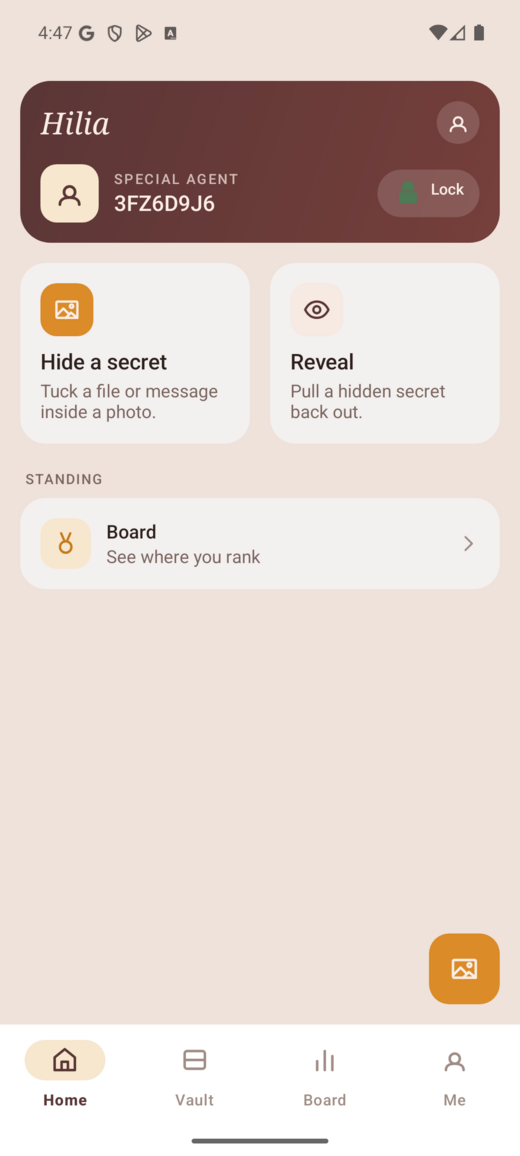
The layout
Along the bottom you'll find four tabs and one big action button:
| What it's for | |
|---|---|
| Home | Your starting point — quick Hide and Reveal shortcuts, and a one-tap Lock. |
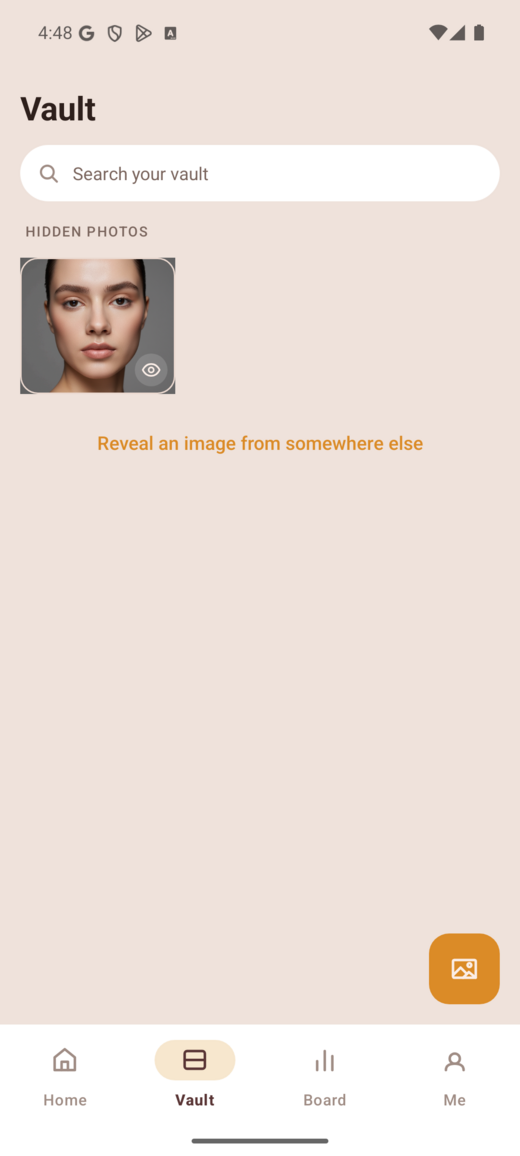
| Vault | Every picture you've made, in one grid. This is where your hidden files live. |
| Board | The optional XP leaderboard. |
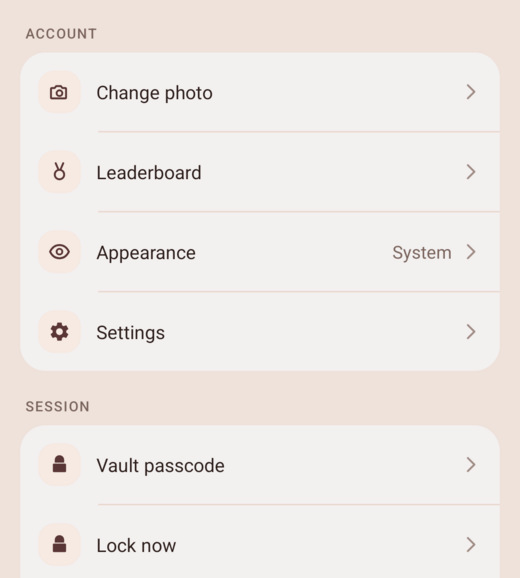
| Me | Your profile, appearance, and all security settings. |
| Hide (centre button) | Start hiding a new file from anywhere. |
Hide a file inside a photo
Tap Hide
Use the centre Hide button, or the Hide card on Home.
Pick the file to hide
Choose any file — a photo, a PDF, a note, a zip. HILIA stores it byte-for-byte, so it comes back exactly as it went in.
Let HILIA build the picture
HILIA tucks your file inside an image. The result looks and opens like an ordinary photo — no one can tell it carries anything.
Find it in your Vault
The finished picture is saved straight to your Vault. That picture is your hidden file — keep it, or share it (see moving images out).
For anything sensitive, encrypt the file first (any app that makes an encrypted archive works), then hide the encrypted file. Even if someone defeats the hiding layer, they get ciphertext, not your data.
Reveal a hidden file
Revealing always starts from your own Vault — you pick a picture you already know carries something, rather than hunting through your camera roll.
Open the Vault
Tap the Vault tab and choose the picture you want to open.
Enter the passcode
If the file was locked with a passcode, type it in. There's no recovery — HILIA never stores passcodes, so a lost one means a lost file.
Get your file back
The original file is extracted, identical to the day you hid it.
Lock the app with a Vault passcode
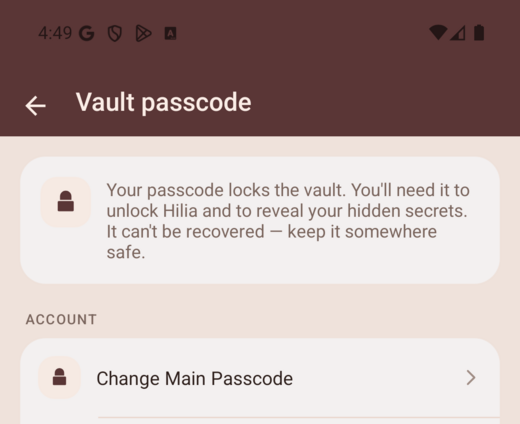
Separately from the passcode on any single file, you can put a lock on the whole app, so the Vault and everything in it stay closed until you unlock.
Open passcode settings
Go to Me → Vault passcode. (When no passcode is set yet, Home also shows a Set up a main passcode card as a shortcut.)
Set your main passcode
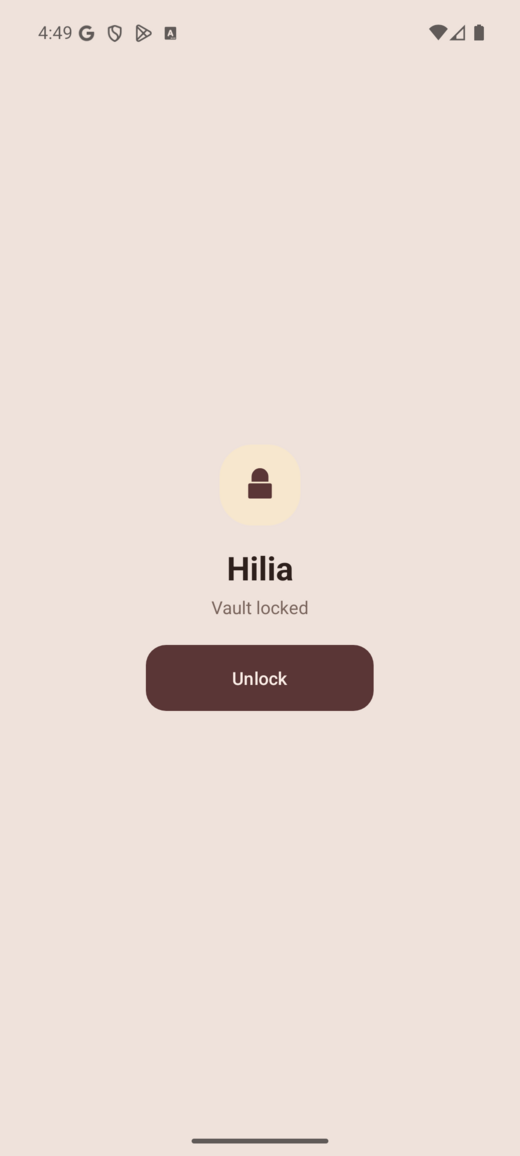
Tap Set main passcode and choose one. From now on, HILIA opens to a lock screen.
Unlock however you like
On the lock screen, tap Unlock and enter your passcode. You can also turn on biometric unlock (fingerprint / face) in settings — it's off by default, so you opt in.
Two different passcodes, two different jobs. A file passcode protects one hidden file when you reveal it. Your Vault passcode locks the app itself. You can use both.
Locking on demand
You don't have to wait for the app to close:
- Home — tap the Lock button at the top.
- Me — tap Lock now.
Either one drops you straight to the lock screen.
Climb the Board (optional)
The Board tab is a global XP leaderboard — you earn XP as you use HILIA. It's entirely opt-in:
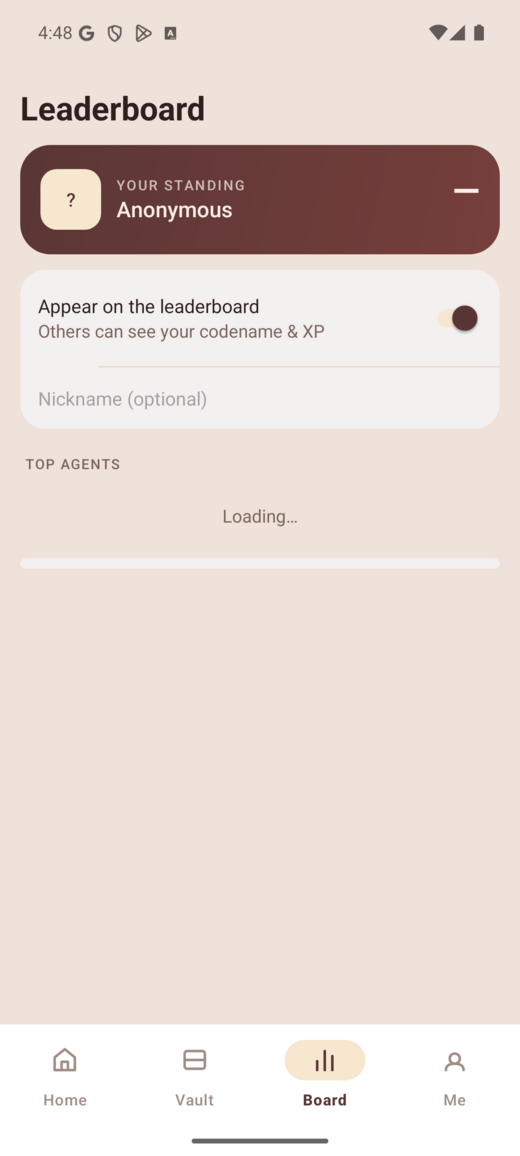
- Open Board and sign in with your Google / TYO ID.
- Flip the opt-in switch to appear on the board.
- Set a nickname if you'd rather not show your account name.
Not interested? Skip the tab — nothing about hide, reveal, or your Vault needs it.
Moving images off your phone
A stego picture only survives if it travels untouched. Chat apps and social platforms re-compress photos, which quietly destroys the hidden file.
- Do send it as a file / attachment — a drive link, email attachment, or cable transfer.
- Don't send it as an inline photo in a messenger, or post it to a feed.
Images made in the app reveal on the web tool too (and vice-versa), as long as the file isn't re-compressed in transit. See Hide & reveal for the full rules.
Where next
- Passcodes & security — what the passcode does, and what steganography can and can't defend against.
- Choosing a hiding method — capacity vs detectability.
- Android app overview — how the app compares to the web tool.